Private by choice.
Private Cupid runs on your Mac with your selected context. It never silently switches to a cloud model.
 dataing / local
PERSONAL AI, ON YOUR TERMS
Your conversations. Your context. On your Mac.
A private space to think, create, and work with Cupid.
Start with a local model. No Dataing account needed.
Apple silicon · macOS 14 or later
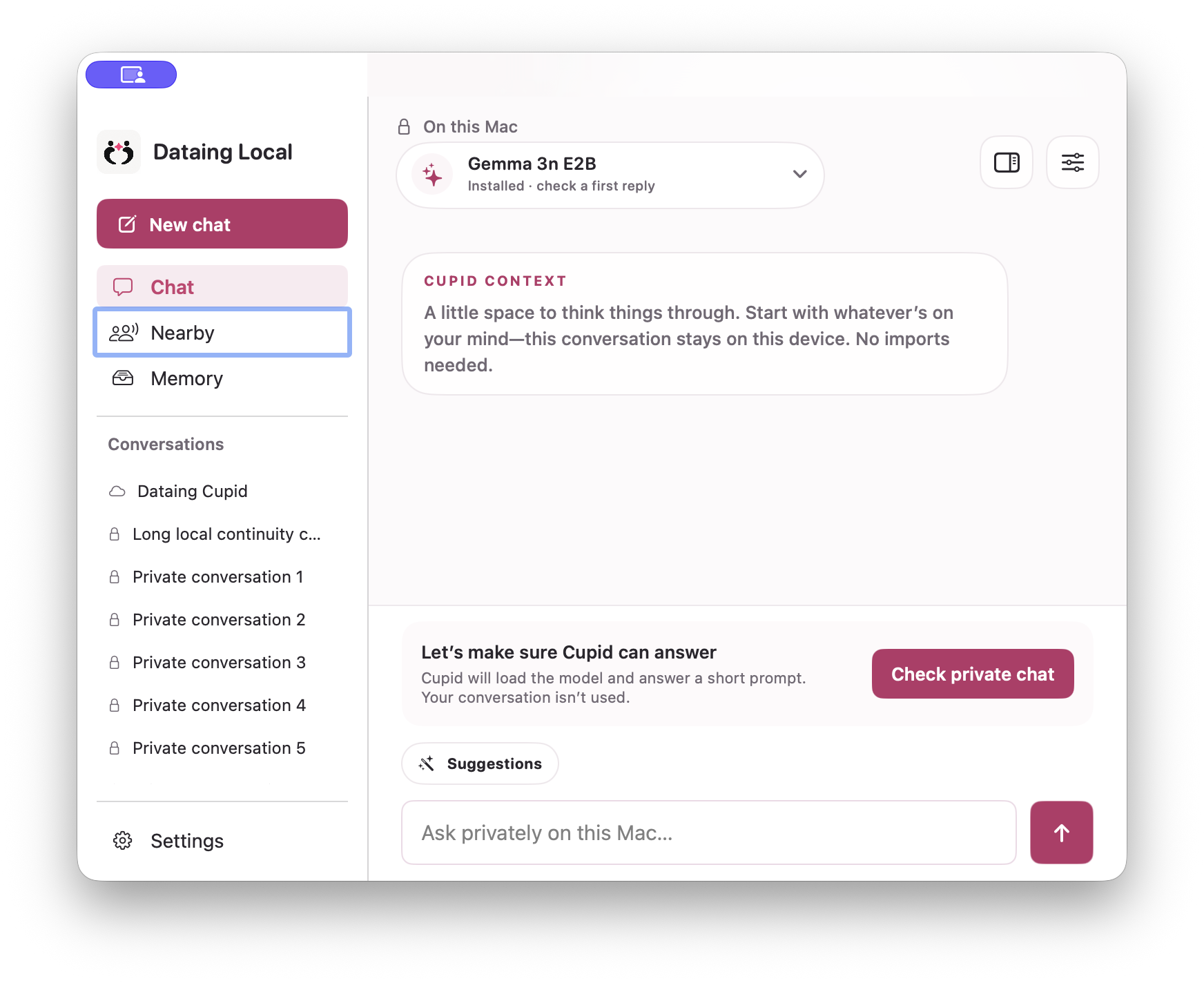
Private Cupid runs on your Mac with your selected context. It never silently switches to a cloud model.
Bring in your notes, files, and memories when you're ready. Review what Cupid can see and keep your context under your control.
Download a model and check its first reply while you're online. Once ready, local chat works without an internet connection.
GETTING STARTED
Models download separately.
Size and device fit are shown in the app.
Open the ZIP and drag Dataing Local into Applications.
Review the download size, then download a model suited to your Mac.
Run the private chat check, then tell Cupid what's on your mind.
The details, without the guesswork.
Private Cupid uses an on-device model. Private conversations and local imports stay in your workspace unless you explicitly share or export them.
Dataing cloud conversations are separate and use Dataing's service. Connecting Dataing is optional. Connected services still sync with their providers. Optional iCloud Keychain recovery syncs only your backup recovery key through Apple, not your chats.
This Mac download is for Apple silicon (M1 or later), running macOS 14 or later. Model requirements vary. The app recommends a model based on your hardware and checks that it can answer before you rely on it.
Start with one recommended model. Larger models need more memory and storage and aren't always a better fit.
Checking Windows availability...
Windows downloads are offered only after signing and release checks pass. Windows requirements and setup.
Download Windows betaMAC 0.2.20
A simpler sidebar puts New chat and conversation history first. Chat, Nearby, and Memory have distinct homes, with model setup and Settings close at hand.
Private conversations show "On this Mac." Model readiness, reply checks, and recovery actions stay available without crowding the conversation.
Historical notes describe each release at the time it shipped. Current setup and availability are described above.
Open Messages on both Macs, make your cards, and connect with a private invite. Compare the numbers before accepting. Nearby needs a shared local network, not an internet connection, a Dataing login, or a model.
For Private Cupid, Local now recommends a model for your Mac and checks that it can reply. If it cannot, your message stays here and Local helps you choose the next step.
Backups now request device unlock and verify the saved file. Choose optional iCloud Keychain recovery to keep the recovery key through Apple without copying it by hand. This is Keychain recovery, not a passkey.
Only the key uses this sync option. Save the backup outside synced folders to keep its file local. Recovery on another device depends on your Apple Account and Keychain sync; verify it there before relying on it alone. An offline recovery key remains available.
A protected recovery key survives an interrupted save. Mail refresh is now on demand, so opening Your Story cannot leave backups waiting for Apple Mail. Cross-device recovery and a full internet-off rehearsal remain separate checks.
Import private context and generate images on your Mac without connecting Dataing. Download the models first; your local chats, imports, and generated images stay in your private workspace.
Save a password-encrypted backup, verify the saved file, and restore into a separate workspace without replacing your original chats. Models and account credentials are not included, and a lost backup password cannot be recovered.
Offline Ready separates installed models, tested local replies, encrypted storage, and backup verification. It is a practical checklist, not an emergency-safety certification.
People now loads its context in the background, with pause and resume. Leaving the tab cancels unfinished work, and repeated refreshes no longer pile up or replace a newer selection.
This release also includes smoother Dataing reconnection. An expired login pauses account sync without interrupting Private Cupid; your saved local chats and models stay in place.
A smaller, transparent desktop companion with a clear close button. Click Cupid to chat, stop a reply whenever you need, and hide or reopen it from the Cupid menu. Your draft stays when you hide it during the same app session.
Desktop chat stays with Private Cupid and your on-device model. Calmer animation respects Reduce Motion, and model readiness checks are more reliable.
Read earlier messages while Cupid replies, jump back to the latest, and find your downloaded models faster. Model switching waits for the current reply to finish. Private context retrieval and local table analysis have stronger checks, and the refreshed Mac workspace gives your conversation more room.
A new release check looks for official Qwen4 weights. Qwen4 local support is not included yet; Private Cupid never falls back to a hosted model.
Download a local model and start chatting with Private Cupid. Your conversations stay on this Mac, including after a restart. Connect Dataing when you're ready to bring more context along, without losing your private threads. Imports and image generation still require connecting Dataing in this release.
Private Cupid now reserves room for your saved context and recent messages. Model setup is simpler, a new private chat keeps your previous thread saved, and downloading another model no longer switches the one you’re using. Gemma 4 E2B is the starting recommendation on Mac; smaller Qwen options remain experimental.
An optional People view adds personal keepsakes and interpretations you can confirm, correct, or stop using. These changes are planned for a future signed Mac release.
People feels more like a relationship scrapbook: familiar faces, words worth keeping, and a place for the little things you appreciate. Confirm someone's Dataing profile once to use their available picture alongside local Photos and Contacts. Keep your own sent-message snippets or write a personal keepsake, stored in your encrypted collection on this Mac. Source details stay one click away, and calendar plans remain plans, not invented memories.
The first Windows companion brings Cupid chat, explicit ChatGPT archive imports, photo rhythm, a private Connections view, and local Ollama models into the same reviewable vault idea. The public x64 beta is held until its installer is signed, timestamped, and accepted on Windows 11; updates remain manual during beta.
Connections is now organized around people instead of an abstract graph. Open Eric, Yaya, or anyone else you have confirmed to see their approved iMessage, Discord, X, Photos, Instagram, Calendar, Email, and Cupid references together, followed by a tentative read of what those sources can teach Cupid. People stay grouped into romantic relationships, friends, coworkers, family, and a review queue you control.
Wallet is now a calm, watch-only portfolio for the public addresses you choose. Token balances, network labels, receive details, and explorers are easier to scan, while every balance read stays on demand. Cupid never receives signing power, and wallet holdings stay outside its memory and matching context.
Gemma 4 26B A4B now appears in the model lab as a high-end PC and workstation candidate. Cupid shows its real 48.1 GB source size, 64 GB memory recommendation, text-and-vision capability, and exact Google source without pretending the current LiteRT Mac runtime can open Transformers weights. A Windows companion path is now mapped around the same private vault and review controls.
Connections now brings familiar Contact names, tentative relationship circles, local Messages activity, and approved Cupid references into one private map. A person like Yaya can be recognized across a Contact alias and the history you chose to give Cupid, while possible exes, family, and friends stay clearly tentative until you review them.
Connections now opens from a lightweight, cached view of Cupid’s approved relationship context instead of repeatedly rebuilding the whole constellation. Larger private histories stay responsive, and Web Rhythm remains useful for personal rhythm without becoming evidence about who someone is.
Cupid can now learn from four new local doorways you choose: plans in Reminders, named correspondence rhythms in Apple Mail, your own words from a Discord export, and the domains that shape your time across major browsers. Each becomes a small, protected context summary on your Mac—not a copy of the original history.
Connections turns the people and patterns in your approved digital footprint into a living constellation. See who Cupid knows, which local or Dataing sources support that context, the moments they share with you, and what Cupid is still learning—without turning any of it into a secret score.
We built the next foundation for Cupid’s memory: encrypted evidence, people, relationships, beliefs, events, and life episodes that stay linked to where they came from. A belief can be corrected, contradicted, superseded, or removed when its source disappears.
Once Dataing Local is in Applications, it can check for a signed update inside the app and replace the same copy in place. No more guessing which download is newest or keeping a stack of old installers.
Cupid can remember names you confirm, connect those names with context you reviewed, and carry the thread across local conversations. Optional Calendar, Contacts, Photos, and activity doorways stay separate, so one “yes” never quietly becomes permission for everything.
The model shelf now makes device fit, storage needs, and account requirements easier to understand. Local vision can describe a photo you explicitly choose, while keeping identity guesses and face matching out of scope.
Older releases stay available if you need to go back.
Make an encrypted backup first. Quit Dataing Local, open the older ZIP, and replace the app in Applications, not your local data.
An older app may not read newer data formats. Downgrading the app does not roll back your data. Keep your backup and never bypass macOS security warnings.
Loading preserved releases...